How to Make a Collage on Pinterest (Step-by-Step Guide)
For some time now, Collages have always been a known way to share ideas on Pinterest. As a user who is putting together a mood board or showing off your outfit picks, there’s no better way to show them off to others unless they’re perfectly arranged in a collage.
Thanks to the wonderfulness of Pinterest, you don’t have to use third-party tools to create your collages anymore. Easily, it can be done within the Pinterest mobile app on Android and iOS. If you’re unfamiliar with the process, this guide will walk you through all you need to know.
With the built-in collage feature in the Pinterest mobile app, making collage has been made easier as trying to post a Pin that ranks. Because a great collage will surely attract more views and stand a chance to be more visible in search suggestions.

Benefits of Collages on Pinterest
On other social media platforms, collages might be seen as just pretty pictures. But on Pinterest, they serve multiple creative benefits.
1. Tell a Visual Story
With collages, you can group related ideas into one image. From showing a room makeover to a fashion look or a travel mood board, collage lets you capture all that without the need for multiple pins.
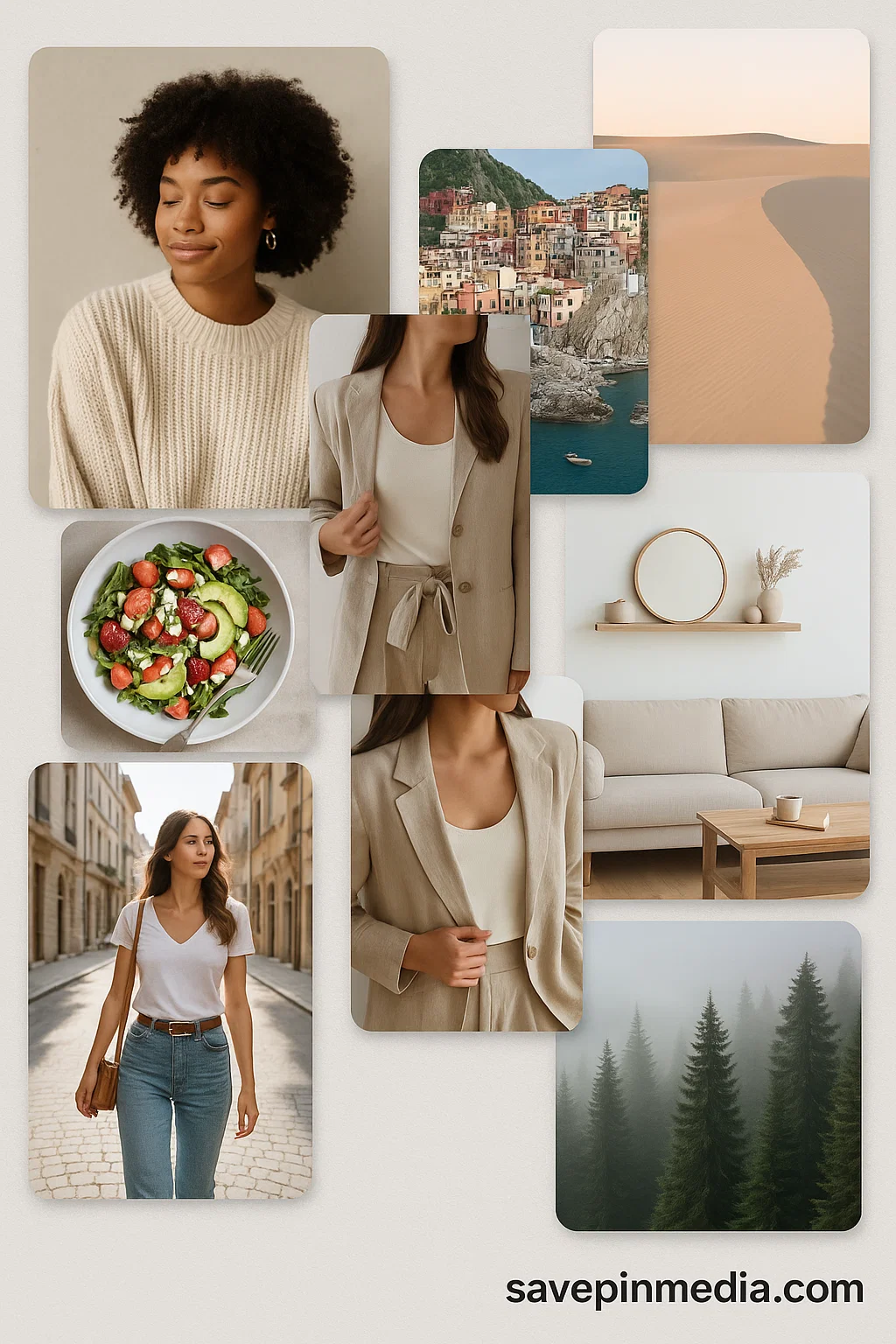
2. Save Time and Space
Posting several images at once could lead to having a cluttered profile. Instead of unsaving Pins, collage allows you to save time and combine many images into a single Pin. It’s cleaner and easier for followers to engage with, especially on mobile.
3. Boost Engagement
With a well-designed collage, you’ll have Pins that stand out in the feed. In most cases, it does help in building engagements and attracting more users to stop, look and save your Pins.
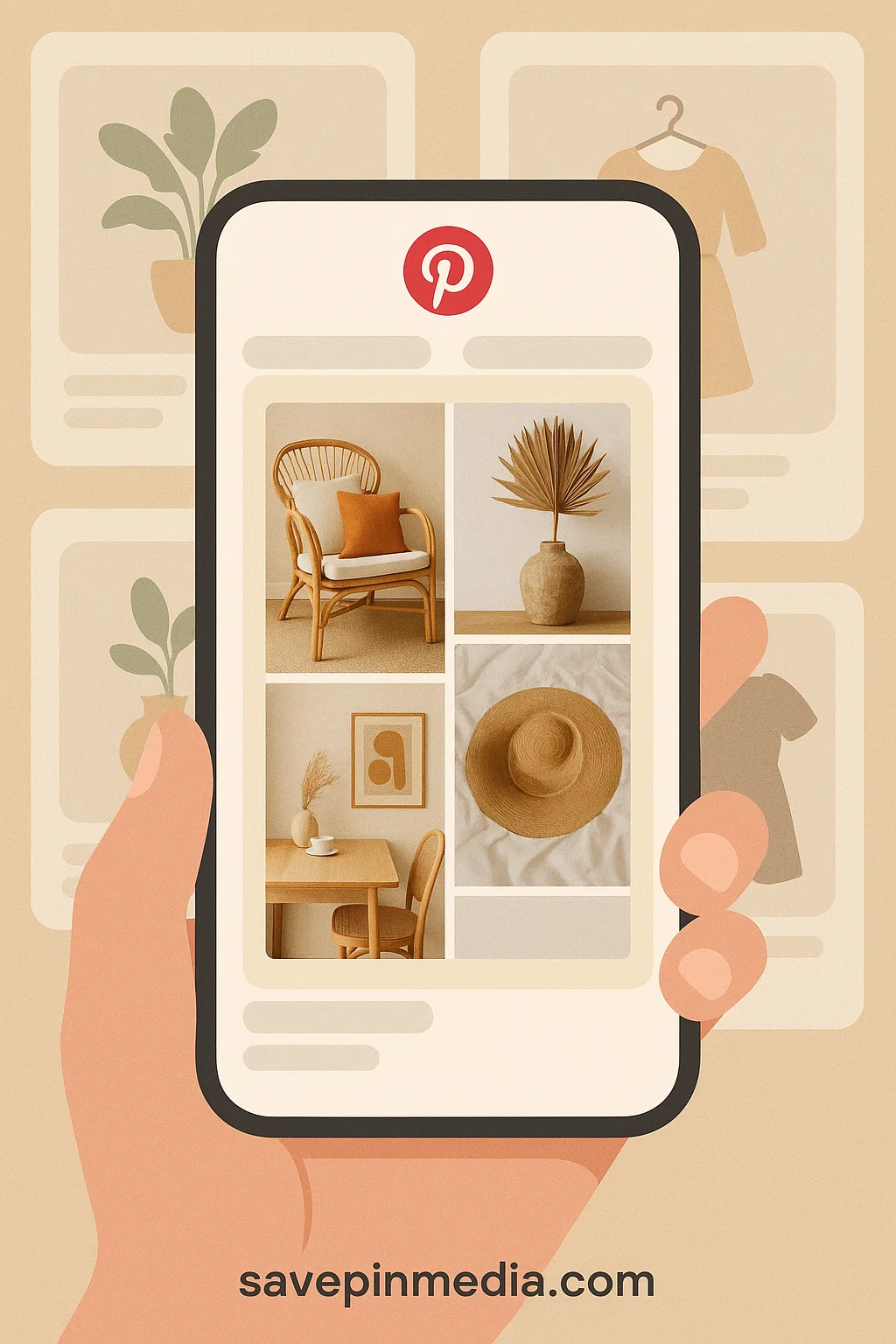
Methods to Make a Collage on Pinterest
Creating a collage on Pinterest usually comes in different methods. However, there are just two main ones that work and you can use them to create your collage.
Method 1: Using Pinterest’s Collage Feature (Mobile Only)
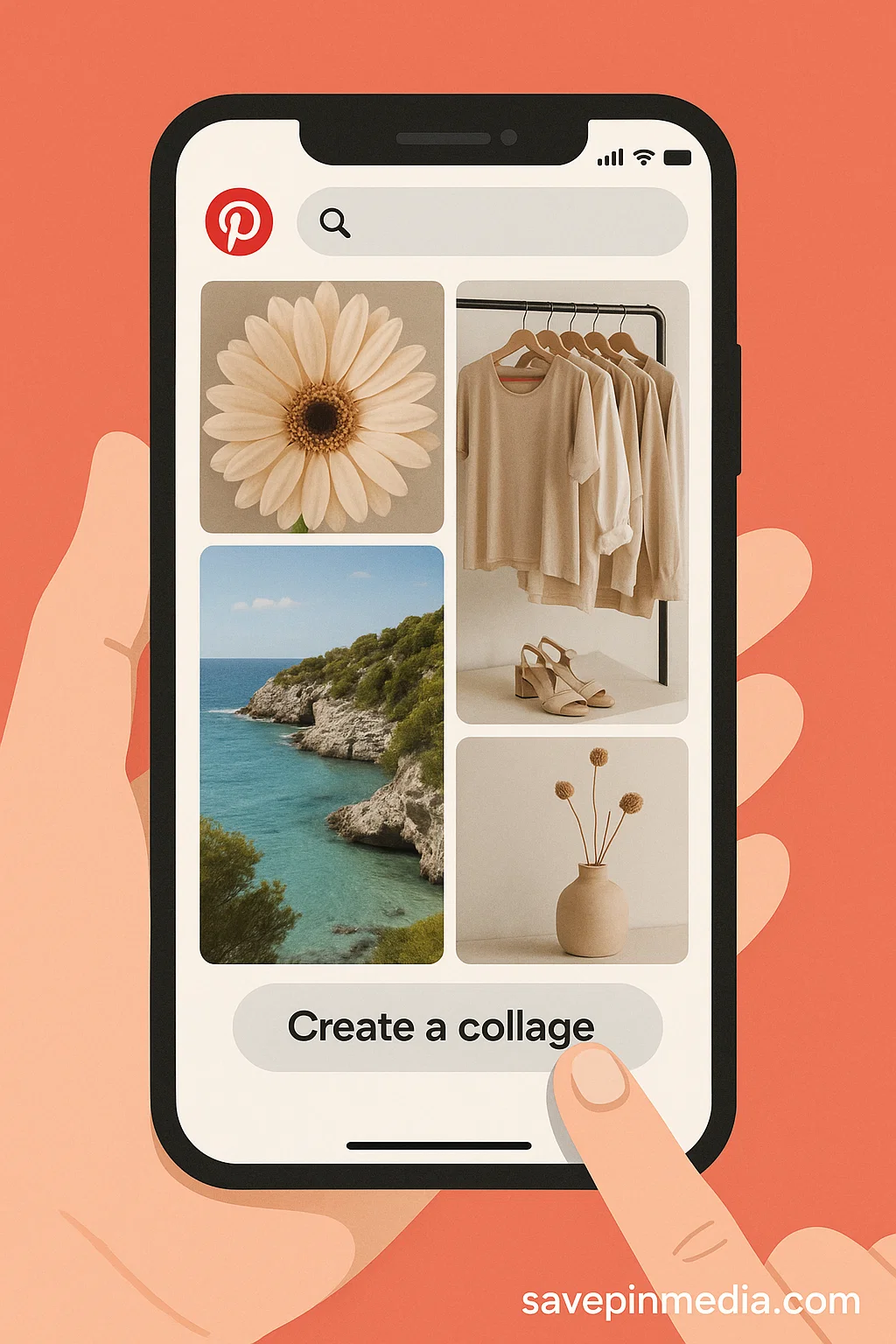
On the Pinterest mobile app for Android and iOS, there’s a built-in collage feature. If you want to learn how to use it, follow the steps below. Note: You should have the latest version of Pinterest installed on your device.
- Open the Pinterest app.
- Tap the “+” (Create) button at the bottom centre.
- Select “Collage” from the list, then Enter the Collage composer.
- Tap the “+” icon inside the canvas to begin adding images or cutouts.
- Add content to your collage either by searching Pinterest for Pins, choosing from saved pins or uploading images from your camera roll.
- Arrange your layout by dragging images to move them, pinch to resize, and rotate if needed. Place them however you like.
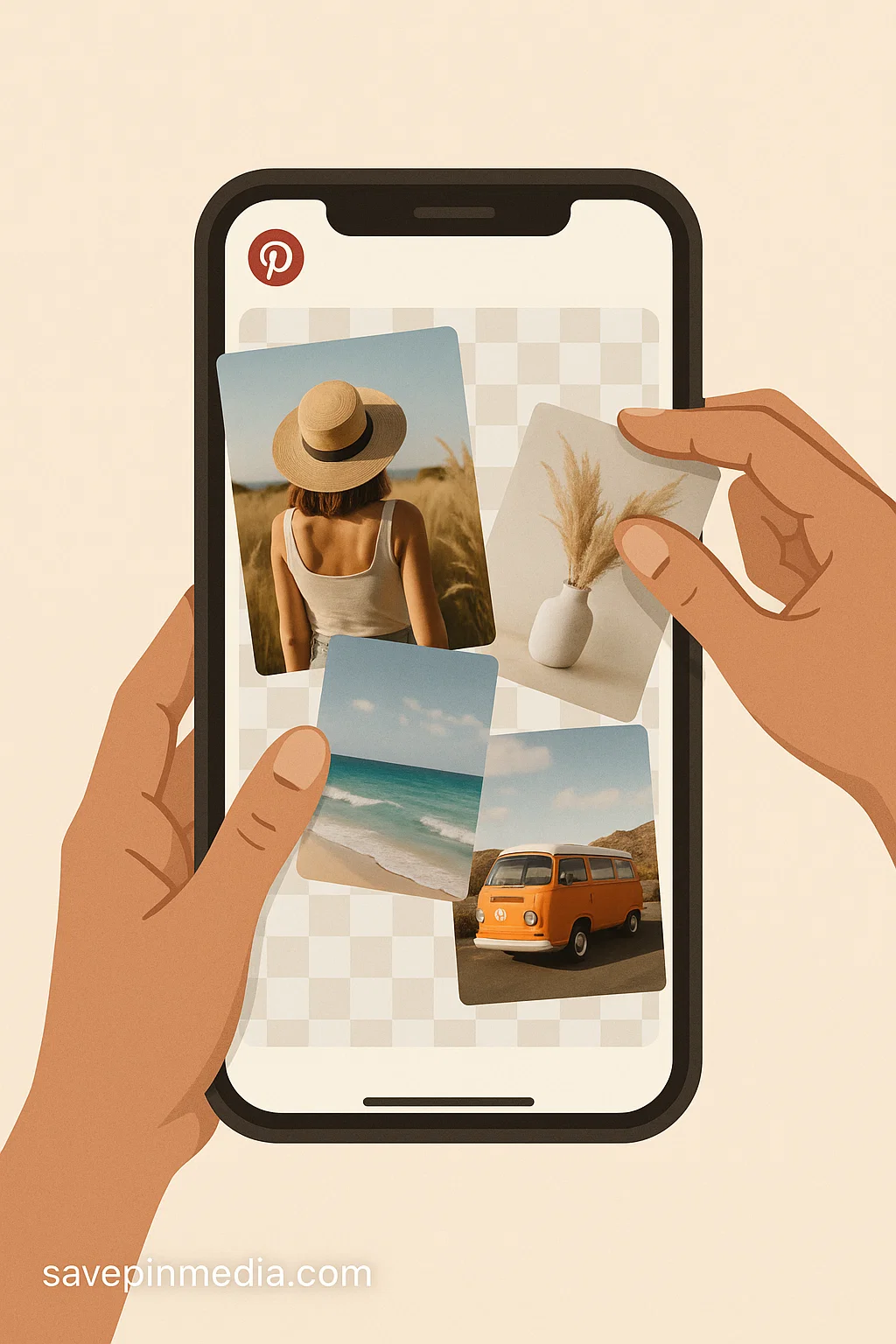
- Customise your collage by using the draw tool to sketch, add text to label things or write a title, and change the background colour to match your theme.
- Make a preview of your design by checking if everything looks right.
- Once done, click on the Publish button to post your collage. Alternatively, you can as well save it as a draft or download it to your phone.
Method 2: Creating a Collage Externally and Posting to Pinterest
If you’re using a web browser and want to create a usable collage to post on Pinterest. The only possible way is to create it externally using an online tool like Canva. To create a Pinterest Collage with Canva, follow the steps below:
- Go to Canva.com and start a new design.
- Search for the Pinterest Pin template (usually 1000 x 1500 px).
- Add your images and arrange them using Canva’s collage grids from the Insert layout option.
- Once done, download the final design as a PNG or JPG.
- Open Pinterest, click Create Pin, upload your image, add a title, description, and publish.
What About the Pinterest Shuffles App?
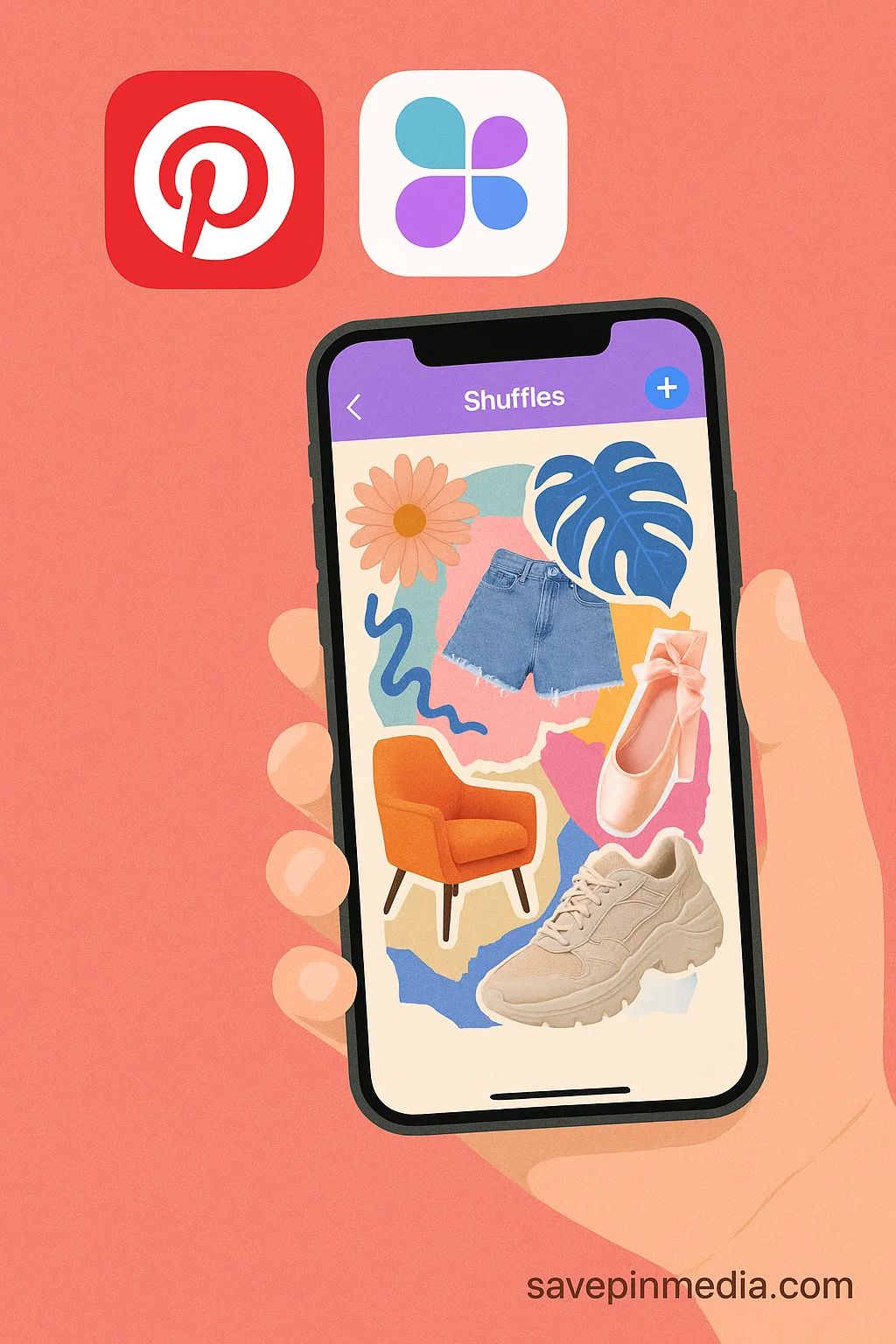
As of last year, Pinterest launched an app called Shuffles. Its primary goal is to allow users to create amazing collages. You can cut out items, layer images, and animate designs. While the app has had over 2M+ downloads, a lot of users still don’t know how to use it or prefer the native approach which the Pinterest app offers.
How to Use the Shuffles App to Create a Pinterest Collage
Here’s a simple guide to create Pinterest collage using the Shuffles App.
- On your Android or iOS device, download and install the latest version of Shuffles.
- Launch it and log in with your Pinterest account.
- Tap the “+” to start a new collage. You can search for content directly from the Pinterest database or upload from your device.
- Tap on images you like and send them to your canvas. You can keep adding more as needed.
- Drag to move, pinch to resize, and rotate each piece. You can layer items, stack them, or create a collage-style layout however you like.
- When you’re done, tap the share icon. You can post your design to Pinterest directly or download it to your phone.
Creative Ideas for Pinterest Collages
Need some inspiration? Here are a few ways you can use collages on Pinterest:
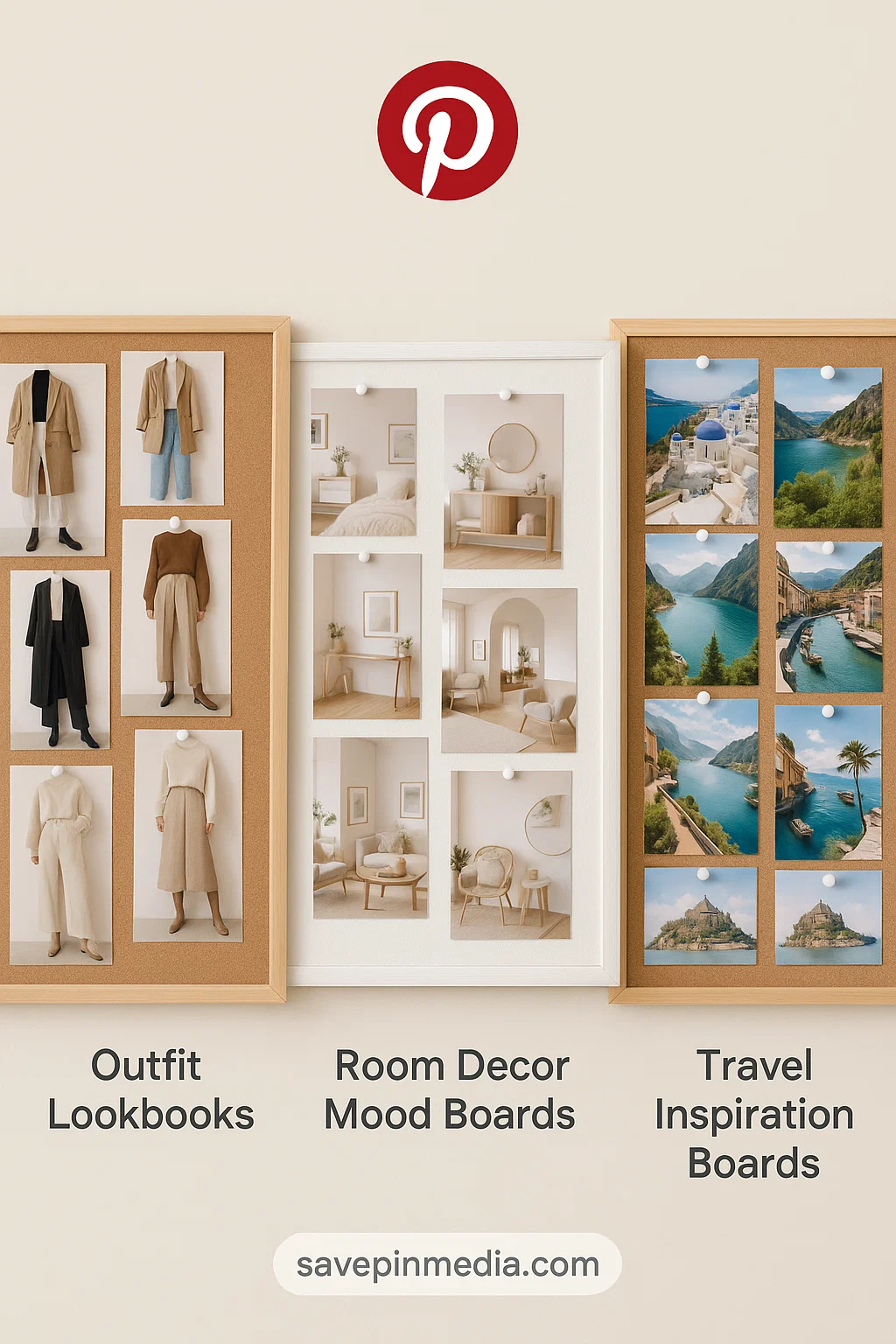
- Outfit Lookbooks: Combine tops, jeans, shoes, and accessories into one Pin.
- Room Decor Mood Boards:: Use cutouts of furniture, colours, and textures to plan your space.
- Travel Inspiration Boards: Mix scenic shots, hotels, maps, and activities.
- Before-and-After Projects: Place two or more images side by side for a satisfying comparison.
- Product Roundups: Showcase multiple items from a collection in one image.
Conclusion
As a Pinterest user, always make it a habit to create collages as Pins. This allows you to have an organised profile and also increases your chance of ranking. You can always put your favourite ideas into an eye-catching one. If you find this guide helpful, don’t forget to leave a comment and share with others.

Claire Weston
Keep Learning
 Claire Weston
How to Unsave a Pin on Pinterest (Step-by-Step Guide)
 Claire Weston
How to Delete Pins on Pinterest
 Claire Weston